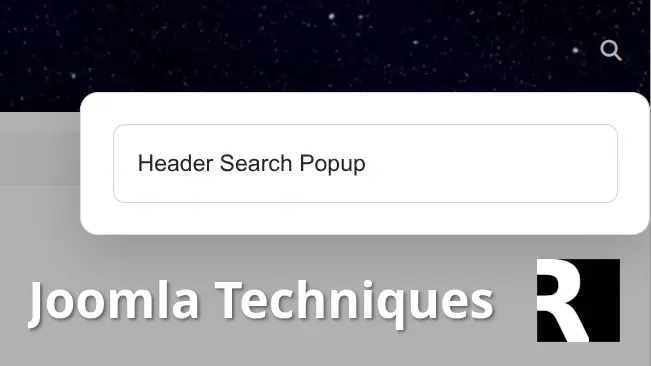
Many Joomla users want a clean Joomla header search popup instead of a bulky permanent search box that eats up valuable header real estate. A modern Joomla search popup triggered by a simple icon keeps the design sleek while giving visitors quick access to search when they need it. Best of all, it uses the web-standard Popover API. How well does it work? It's in the header above!
If you've been searching for a header search popup solution, this tutorial delivers exactly that using only Joomla's built-in Smart Search module, a small amount of CSS, and a lightweight JavaScript snippet. No additional extensions are required beyond the free System - HeadTag plugin for easy code injection. If you're comfortable adding a CSS and JS file to your template - you won't need any extensions at all.
This approach is especially useful for anyone tired of complicated template overrides or paid modules just to achieve a basic Joomla search icon in header that opens a nice popup.
Why a Dedicated Joomla Header Search Popup Matters
A permanent search field in the header can make your site feel cluttered, especially on mobile or minimalist designs. A Joomla header search popup solves this by hiding the search form until the user clicks an icon. The popup then appears cleanly with a backdrop, proper positioning, and auto-focus on the input field.
The best part? You can achieve this with core Joomla functionality. The Smart Search module (mod_finder) already provides powerful search features like suggestions and advanced filtering. We simply transform it into a header search popup with minimal configuration changes.
The Common Pain Point: Adding Custom Code in Joomla
One frequent complaint when building a Joomla search popup is where to place the extra JavaScript and CSS. Traditional advice often points to editing files like media/templates/site/yourtemplate/js/user.js or user.css.
For many site owners this isn't beginner-friendly:
- Some templates don't automatically load those files consistently.
- Updates to the template can overwrite your custom code.
- It feels intimidating if you're not comfortable working directly inside template folders.
That's where the free System - Head Tag plugin shines. It lets you inject custom JavaScript and CSS directly into the page <head> from the Joomla admin area. You can even target specific menu items or user groups if needed. Using System - HeadTag makes creating a Joomla header search popup much more accessible without risky template edits.
Step 1: Configure the Smart Search Module
This is the core of the solution and requires only a few settings.
- Go to Extensions → Modules in your Joomla administrator.
- Edit your existing Smart Search module or create a new one.
- Assign the module to a header position (the module output will be hidden from normal display flow once the popover is active).
- Switch to the Advanced tab and set these exact values:
- Module Class: xpopover d-none
- Module Style: html5
- Show Title: hide (hide the title)
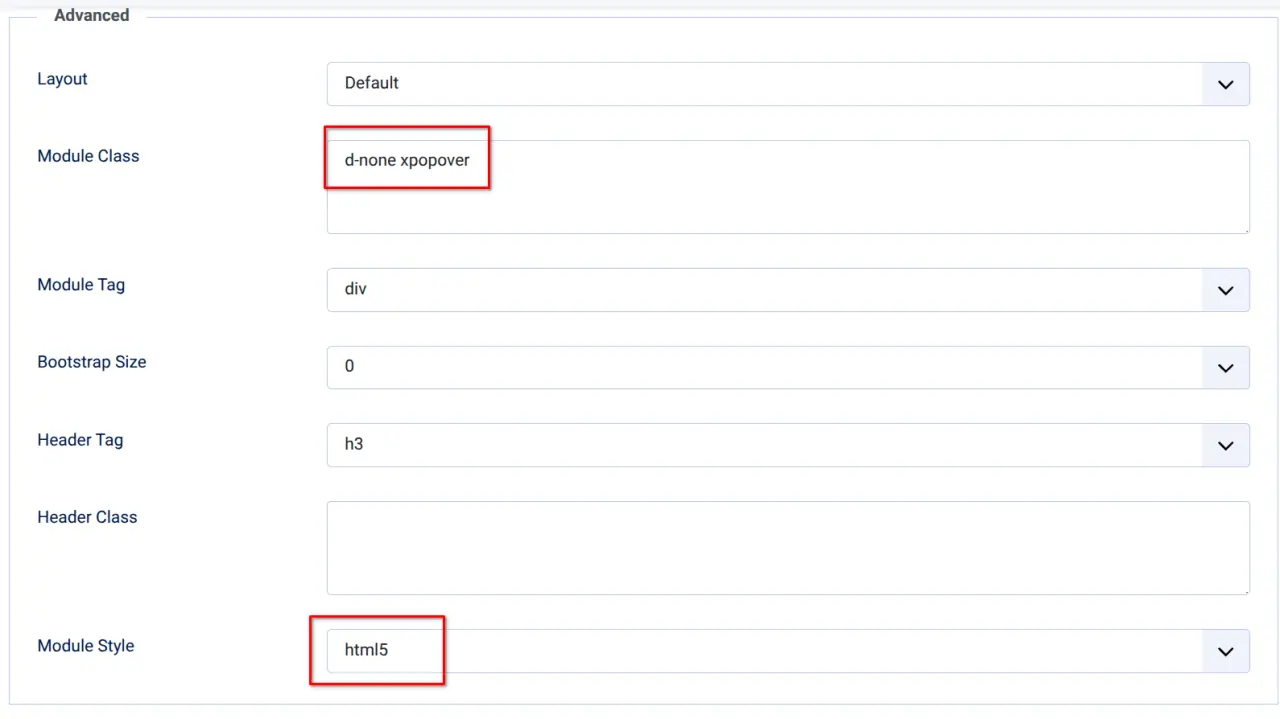
Save the module. Joomla will now render the full Smart Search form (with any suggestions or options you've enabled) inside a container that has the class xpopover d-none (hidden).
That's all the module configuration needed. No custom form HTML required.
Step 2: Add the CSS for Your Joomla Header Search Popup
Add the following CSS using the System - HeadTag plugin (in the CSS section), or if you're not using the plugin, add it to your template user.css stylesheet.
/* Trigger Icon */
.search-trigger-icon {
    background: none;
    border: none;
    padding: 8px 12px;
    cursor: pointer;
    color: #fff;
    transition: transform 0.25s ease, color 0.2s;
}
.search-trigger-icon:hover {
    transform: scale(1.12);
    color: #ddd;
}

/* The popover */
#popoversearchbox {
    background: white;
    border: 1px solid #ddd;
    border-radius: 12px;
    box-shadow: 0 12px 40px rgba(0,0,0,0.18);
    padding: 1.5rem;
    width: 380px;
    max-width: 90vw;
    margin-top: 8px; /* small spacing from icon */
    position-area: bottom right; /* position relative to trigger */
    overflow: visible;
}
#popoversearchbox::backdrop {
    background-color: rgba(0, 0, 0, 0.3);
}

/* Style inside the popover */
#popoversearchbox input.js-finder-search-query {
    width: 100%;
    padding: 14px 16px;
    font-size: 1.1rem;
    border-radius: 8px;
}
This CSS styles both the trigger icon and the Joomla search popup itself, giving it a modern look with rounded corners, shadow, and a semi-transparent backdrop.
Step 3: Add the JavaScript (The Trigger Icon Is Created Automatically)
Add this JavaScript snippet. Again, System - HeadTag is the cleanest method (in the JavaScript section). Otherwise, place it in your template's user.js file that loads site-wide.
var initSearchPopover = function() {
    const popoverBox = document.querySelector('div.xpopover');
    if (!popoverBox) return;
    // Setup the popover
    popoverBox.setAttribute('popover', 'auto'); // 'auto' = nice light dismiss
    popoverBox.setAttribute('id', 'popoversearchbox');
    popoverBox.setAttribute('anchor', 'popoversearchboxbtn');
    // Remove hiding class if you're using one
    popoverBox.classList.remove('d-none', 'hidden');
    // === Create or find the trigger icon ===
    let trigger = document.querySelector('.search-trigger-icon');
    if (!trigger) {
        trigger = document.createElement('button');
        trigger.type = 'button';
        trigger.className = 'search-trigger-icon';
        trigger.setAttribute('id', 'popoversearchboxbtn');
        trigger.setAttribute('popovertarget', 'popoversearchbox');
        trigger.setAttribute('aria-label', 'Open search');
        // Using Font Awesome (as in your CSS)
        trigger.innerHTML = '<i class="fa fa-search"></i>';
        // Insert the trigger right before the popover
        if (popoverBox.parentNode) {
            popoverBox.parentNode.insertBefore(trigger, popoverBox);
        }
    }
    // Optional: Auto-focus the search input when popover opens
    popoverBox.addEventListener('toggle', function(e) {
        if (e.newState === 'open') {
            const input = popoverBox.querySelector('input[name="q"], input.js-finder-search-query');
            if (input) {
                setTimeout(() => {
                    input.focus();
                    input.select();
                }, 100);
            }
        }
    });
};
window.addEventListener('DOMContentLoaded', initSearchPopover);
The JavaScript does the heavy lifting: it turns the Smart Search module into a proper header search popup, creates the search trigger icon automatically, and adds auto-focus for a smooth user experience.
After adding the code, clear your Joomla cache (and your browser cache if testing). You should now have a fully functional Joomla header search popup triggered by a clean icon in the header.
This method keeps everything lightweight, uses native browser features, and fully leverages Joomla's Smart Search capabilities. It's an excellent free alternative for anyone building a modern Joomla search icon in header experience.
A Joomla header search popup is a modern search interface where the search box remains hidden behind a simple icon in the header. When a visitor clicks the icon, a clean popup opens containing the full search form. This approach keeps your header design minimal and uncluttered while still providing quick and convenient access to search functionality. No. This entire solution uses only Joomla’s built-in Smart Search module, the native HTML Popover API, and a small amount of CSS and JavaScript. No paid extensions or modules are required at all. Not necessarily. While it is possible to add the CSS and JavaScript directly into your template files, it is much cleaner and safer to use the free System - HeadTag plugin. This plugin allows you to inject custom code from the Joomla administrator without touching template folders, making the setup far more beginner-friendly and maintainable. In the module’s Advanced tab, you only need to make three simple changes: set the Module Class to: xpopover d-none, set the Module Style to html5, and hide the title by setting Show Title to No. That is all the configuration required on the module side. Yes. The solution is built using core Joomla functionality and the native Popover API, which has excellent support in modern browsers. It works reliably on both Joomla 5 and Joomla 6. Yes. The provided JavaScript automatically detects the Smart Search module, converts it into a popover, and dynamically creates the search trigger icon right before the module. You do not need to add any extra HTML for the button yourself. Yes. You can easily extend the JavaScript to detect smaller screen sizes and apply fullscreen styling such as 100vw width and 100vh height with zero border radius. This is a popular enhancement for better mobile user experience. The HTML Popover API has very good support across modern browsers in 2026. In older browsers that do not support it, the module will simply display as normal content, providing a graceful fallback. Yes, the method works with either. However, Smart Search is recommended because it offers better performance, search suggestions, and filtering options. Minor adjustments to the JavaScript selectors may be needed if you use the basic search module. All visual styling is controlled through the provided CSS. You can freely modify colors, width, padding, shadows, border radius, and positioning by editing the rules for #popoversearchbox and .search-trigger-icon. The JavaScript also respects the position-area attribute for flexible placement. No. The implementation is extremely lightweight, consisting of only a few lines of vanilla JavaScript and CSS with no additional frameworks or heavy extensions. It uses native browser features, resulting in minimal performance impact. The cleanest and most recommended method is using the template user.js and user.css files. If you aren't comfortable with that, you can use the free System - HeadTag plugin, as it keeps your custom code separate from the template files and makes future updates much safer and easier to manage.Frequently Asked Questions:
What is a Joomla header search popup and why should I use one?
Does this Joomla search popup tutorial require any paid extensions?
Do I need to edit template files like user.js or user.css to implement this?
What exactly do I need to change in the Smart Search module?
Will this Joomla header search popup work with Joomla 5 and Joomla 6?
Does the JavaScript automatically add the search trigger icon?
Can I make the popup appear fullscreen on mobile devices?
Is the Popover API supported in all browsers?
Can I use Joomla’s core search module instead of Smart Search?
How do I customize the appearance of the popup?
Will this solution affect my site’s performance?
Where is the best place to add the CSS and JavaScript code?
