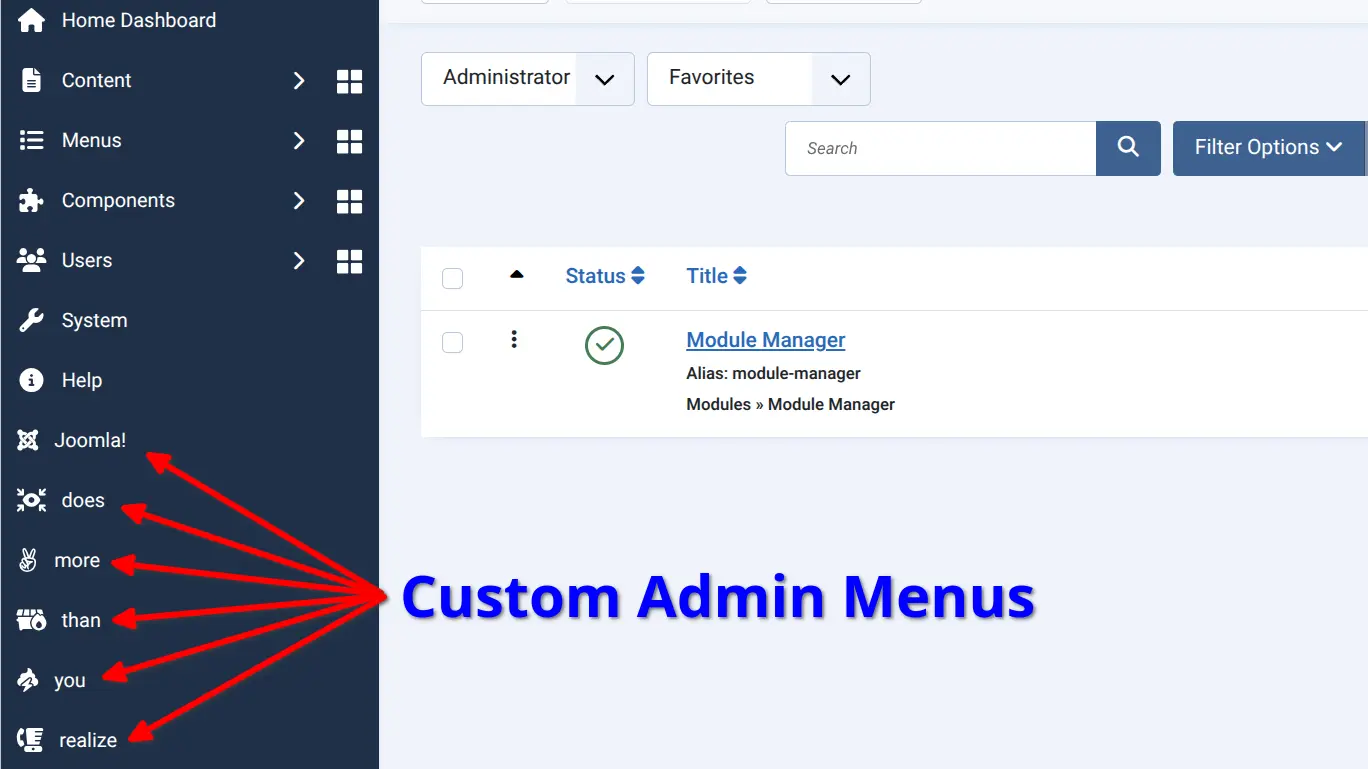
Joomla is more powerful than most people realize — including many long-time Joomla developers and advocates. Its core ships with a remarkably deep feature set that frequently goes undiscovered, solving problems that people reach for third-party extensions to address. Those extensions add weight, introduce dependency, and slow your site down. Before installing anything, it's worth asking: does Joomla already do this?
This tutorial answers that question for one common need: quick access to the admin views you use most.
The Path Is Yours to Choose
Every Joomla administrator has a different job to do. A developer maintaining a staging server lives in the Plugin Manager and clears cache constantly. A content editor returns to the Articles Manager dozens of times a day. A site owner running a software distribution platform needs direct access to release management. A template designer cycles between Template Styles and Language Overrides.
The Joomla administrator menu is not a fixed road — it is a trail system. This tutorial shows you how to cut your own path through it.
What We're Building
A custom administrator menu that places your most-used backend links permanently at the bottom of Joomla's main navigation sidebar — no extensions, no overhead, no ongoing subscription.
Step-by-Step Instructions
1. Open the Menu Manager
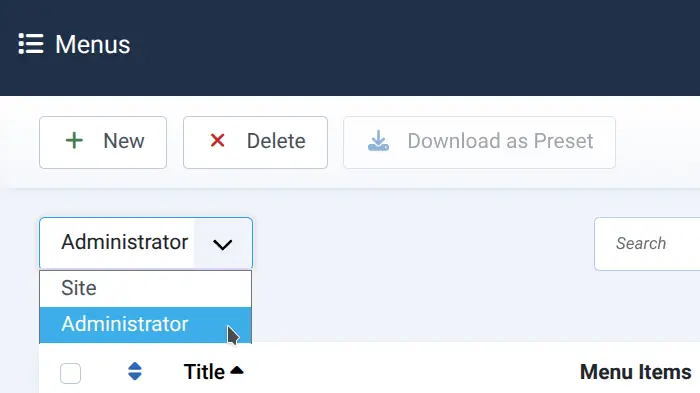
Navigate to Menus → Manage in your Joomla administrator.
You'll see a dropdown that is likely pre-set to Site. Change it to Administrator.
2. Create a New Menu
Click the + New button.
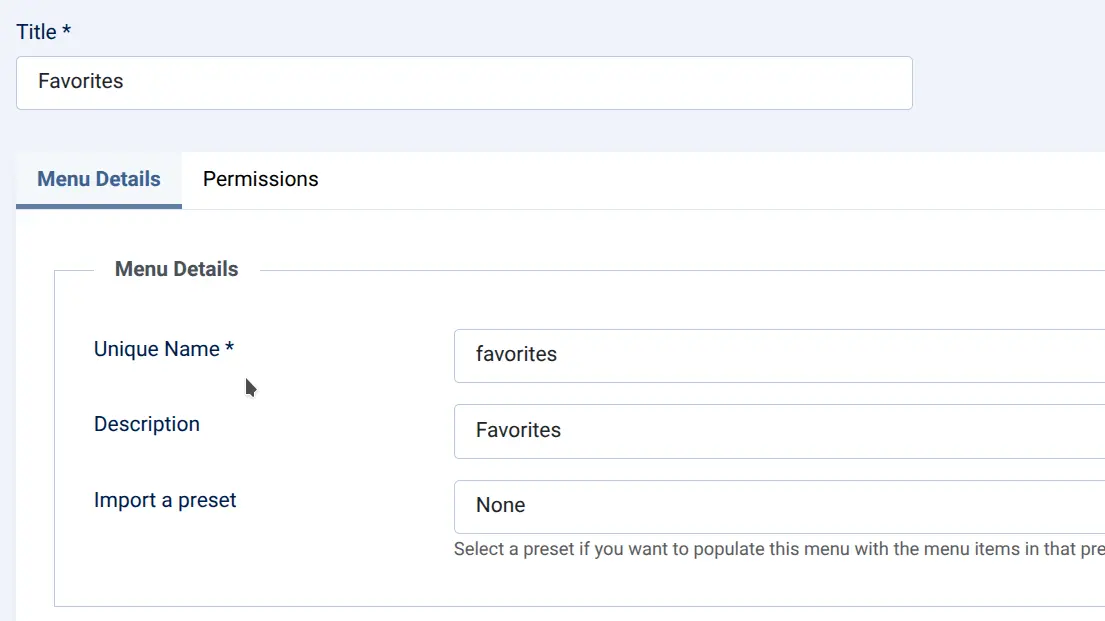
Give your menu a name — Favorites works well, or name it after your role or workflow. Copy that same name into the Unique Name and Description fields.
Click Save.
3. Create a Module for the Menu
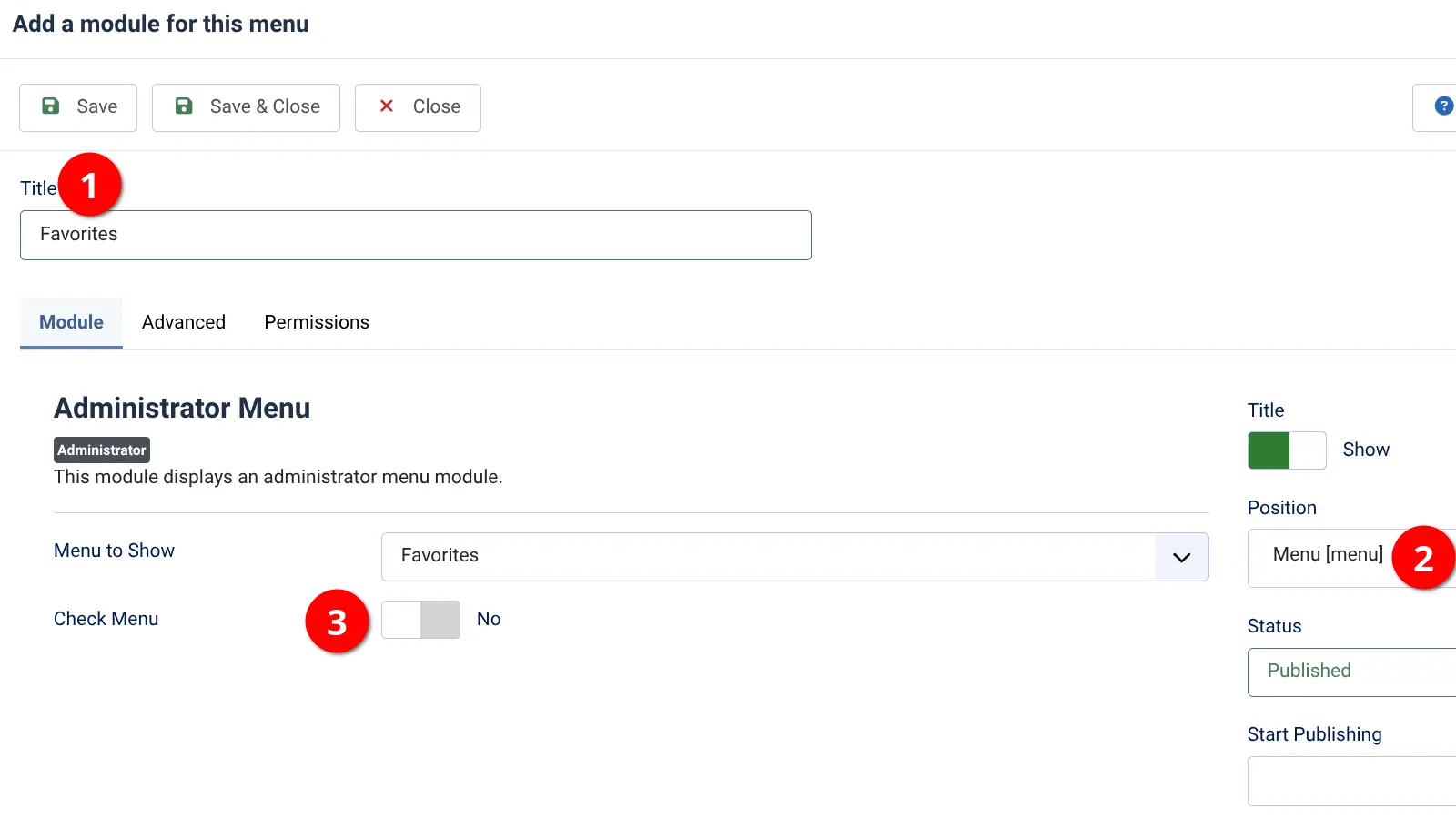
Back in the Menu Manager, find your new menu. In its row, you'll see a button labeled Add a module for this menu — click it.
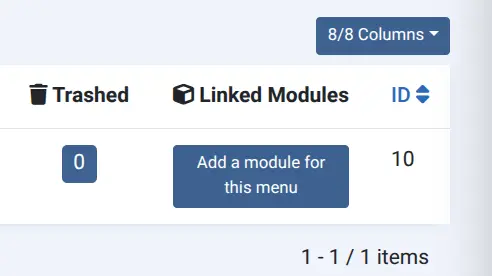
A popup will appear. Set the title to match your menu name and choose Menu as the position.
Before saving, locate the option labeled Check Menu and set it to No. This prevents Joomla from flagging your custom menu for missing core navigation items.
Click Save.
4. Add Your Menu Items
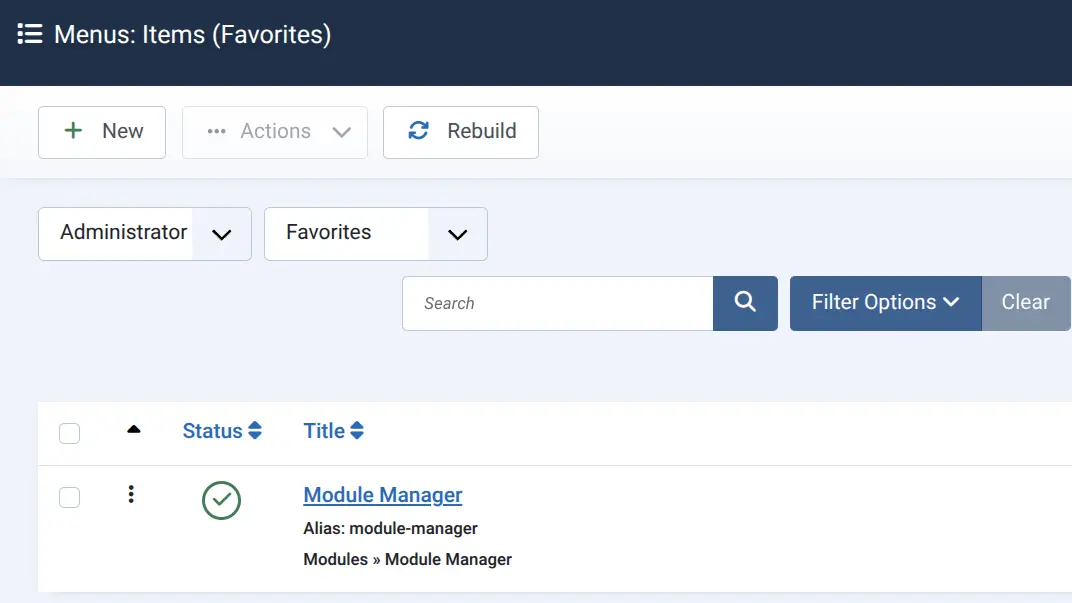
In the main navigation sidebar, under Menus, you'll now find your new menu. Click it to open the item list and begin adding links.
Each item you add will appear at the bottom of Joomla's main administrator menu — persistent, fast, and always one click away.
Where the Path Leads: Use Cases by Administrator Type
The URLs below are standard Joomla administrator views. Any of them can become a menu item. These are only examples — your workflow determines which paths are worth cutting.
The Developer
Working on a staging or development server, the focus is on configuration and system state. Context-switching is constant and cache management is frequent.
| Link | URL |
|---|---|
| Plugin Manager | index.php?option=com_plugins |
| Module Manager | index.php?option=com_modules |
| Clear Cache | index.php?option=com_cache |
| Global Configuration | index.php?option=com_config |
| Template Styles | index.php?option=com_templates&view=styles |
The Content Editor
A content editor rarely needs system tools. Their path runs straight through content creation and organization, often returning to the same categories and article lists repeatedly.
| Link | URL |
|---|---|
| Articles Manager | index.php?option=com_content&view=articles |
| Categories | index.php?option=com_categories&extension=com_content |
| Media Manager | index.php?option=com_media |
| Menus Manager | index.php?option=com_menus |
| Language Overrides | index.php?option=com_languages&view=overrides |
The Software Publisher
Running a software distribution site — using a component such as Akeeba Release System — the focus is on release management and download items, not core content tools. Third-party components are first-class citizens in this system, accessible in exactly the same way.
| Link | URL |
|---|---|
| ARS Releases | index.php?option=com_ars&view=releases |
| ARS Items | index.php?option=com_ars&view=items |
| Media Manager | index.php?option=com_media |
| Global Check-in | index.php?option=com_checkin |
The Site Administrator
Responsible for users, permissions, and system health rather than content creation. Their path runs through access control and scheduled maintenance.
| Link | URL |
|---|---|
| User Manager | index.php?option=com_users |
| User Groups | index.php?option=com_users&view=groups |
| Global Check-in | index.php?option=com_checkin |
| Scheduled Tasks | index.php?option=com_scheduler |
| Update Extensions | index.php?option=com_installer&view=update |
The Principle Behind the Practice
Notice that no extension is required to reach any of these destinations. Every URL in the tables above is a standard Joomla administrator view — core or third-party — addressable directly. The custom menu system simply surfaces those addresses where you need them, in the sidebar, without installation overhead or ongoing cost.
Joomla's administrator is not a walled garden. It is an open trail system, and the native menu tools give you everything you need to map it to your own workflow.
The next time you find yourself browsing the Joomla Extensions Directory for a productivity tool, check the core first. The path you need may already be there.
Yes. The custom administrator menu system has been part of Joomla since well before version 4, and the underlying architecture — Menus → Manage → Administrator — remains consistent across all current major versions. Setting Check Menu to No stops Joomla from showing warnings about important menu links not being in your administration menu. Since a custom shortcuts menu is intentionally partial — it's a favorites list, not a replacement for the full admin menu — those warnings are irrelevant and can safely be suppressed. By default, yes — but this is controllable. For the Access option on the module, you can scope visibility to a specific user group. If you want shortcuts visible only to Super Users or a specific role, set the module's Access level accordingly. Absolutely. Any URL reachable within the Joomla administrator is a valid menu item target — core or third-party. If a component is set up to include menu items in each of the administrator list views via default.xml files, you can add menu items directly to the custom menu. For components that don't register themselves this way, a direct URL such as index.php?option=com_ars&view=releases works equally well. Yes, and this is one of its most valuable applications. You can create links to the particular components and views that your clients need most, and hide the rest. Combined with appropriate Access Level settings, a client-facing menu can surface only what they need without exposing system-level tools. No. The custom administrator menu uses the same native mod_menu module type that powers Joomla's default admin navigation. The Administrator Menu module displays the menu in the backend of Joomla — its module type name is mod_menu, and it is related to the Menu component. There is no additional overhead beyond what Joomla already loads for its own menus. Yes. You can create as many administrator menus as you need — one per workflow, one per user group, or one per project. Each is an independent module placed at the menu position, and they stack naturally in the sidebar below the default navigation. Frequently Asked Questions:
Does this work in Joomla 4, 5, and 6?
Why do I need to set "Check Menu" to No?
Will my custom menu items appear for all administrator users?
Can I link to third-party component views, not just Joomla core pages?
Can I use this to create a simplified admin experience for clients?
Does adding a custom menu slow down the Joomla administrator?
Can I have more than one custom menu?
